
QBittorrent & Gluetun & Port Forwarding


I've been meaning to set-up a seed box to seed Ubuntu-server ISOs for some time (I literally download the server ISO like every few weeks cause I'm rebuilding constantly) and thought I'd share some learnings when I paired my QBitorrent Docker set-up with Gluetun (a Wireguard/OpenVPN based application for Docker networks) it ensured my qBittorrent app routed via a VPN service.
I originally wanted to use Mullvad for my VPN provider, but they disabled Port Forwarding capabilities in 2023 which prevents me from uploading/seeding. I since pivoted to ProtonVPN as the VPN service provider, which offers Port Forwarding.
After enabling a base ProtonVPN config recommended by Gluetun's docs, I found that after connecting to the ProtonVPN server, it would provide me a randomised network port to use for port forwarding, I would then need to update my qBittorrent client which would be cumbersome if I'm spinning it down and back up again for maintenance reasons.
In comes 'qsticky', a program that reads the /tmp/gluetun/forwarded_port via the Gluetun Control server API and then updates qBittorrent to the respective network port for torrenting. Deployment is just adding the qsticky app to the Docker Compose stack.
I tried to deploy the base .yaml config from qsticky, but it did not work due to the following:
- Case-sensitivity: The image name was inproperly camel-cased. It should be
qsticky:latestnotqSticky:latest - Timing: qSticky timed out after 5 tries during the time Gluetun was starting / connecting to ProtonVPN and attempting to download the port config details.
The timeout issue was solved by adding a depends_on: – gluetun to qsticky services in the compose.yaml. This ensures that the qsticky container only fires up after the gluetun container is active.
If I still have issues, I could also add a command timer via command: sh -c "sleep 60" to the compose.yaml under qsticky.So after some testing, and lots of trial error it finally worked as expected, I was able to finally get my seed ratios up for my ubuntu-server ISOs.
Check out the compose.yaml below.
Technical Details
compose.yaml
Below is my Docker Compose .yaml file for ProtonVPN + Gluetun + QBittorrent.
Note: Your ProtonVPN configs are in the Proton VPN Downloads location and select the appropriate configs, e.g. 'Port Forwarding'
services:
  gluetun:
    image: qmcgaw/gluetun:latest
    container_name: gluetun
    cap_add:
      - NET_ADMIN
    devices:
      - /dev/net/tun:/dev/net/tun
    ports:
      - 8000:8000  # Gluetun control server port
      - 8080:8080  # qBittorrent WebUI Port
    volumes:
      - ./gluetun:/gluetun
    environment:
      ## Gluetun Settings
      - HTTP_CONTROL_SERVER_AUTH_DEFAULT_ROLE=${HTTP_CONTROL_SERVER_AUTH_DEFAULT_ROLE}
      - TZ=${TZ}
      - UPDATER_PERIOD=24h
      - HTTPPROXY=off
      - SHADOWSOCKS=off
      - VPN_PORT_FORWARDING_STATUS_FILE=/tmp/gluetun/forwarded_port
      ## Base VPN Provider Settings
      - VPN_SERVICE_PROVIDER=protonvpn
      - VPN_PORT_FORWARDING=on
      - VPN_PORT_FORWARDING_PROVIDER=protonvpn
      - FIREWALL_VPN_INPUT_PORTS=51820 # Allow port through VPN firewall
      - SERVER_CITIES=${SERVER_CITIES}
      ## Wireguard
      - VPN_TYPE=wireguard
      - WIREGUARD_PRIVATE_KEY=${WIREGUARD_PRIVATE_KEY}
      - WIREGUARD_ADDRESSES=${WIREGUARD_ADDRESSES}

  qbittorrent-nox:
    container_name: qbittorrent-nox
    image: qbittorrentofficial/qbittorrent-nox:latest
    restart: unless-stopped
    environment:
      - PUID=1000
      - PGID=1000
      - TZ=${TZ}
      - QBT_EULA=accept
      - QBT_VERSION=latest
    read_only: true
    stop_grace_period: 30m
    tmpfs:
      - /tmp
    tty: true
    network_mode: "service:gluetun"
    volumes:
      - ./qbittorrent/config:/config
      - /path/to/torrents:/data/torrents:rw
    depends_on:
      - gluetun

  qsticky2:
    image: ghcr.io/monstermuffin/qsticky:latest
    container_name: qsticky2
    environment:
        # qbittorrent settings
        - QBITTORRENT_HOST=gluetun
        - QBITTORRENT_HTTPS=false
        - QBITTORRENT_PORT=8080
        - QBITTORRENT_USER=${QBITTORRENT_USER}
        - QBITTORRENT_PASS=${QBITTORRENT_PASS}
        # gluetun settings
        - GLUETUN_HOST=gluetun
        - GLUETUN_AUTH_TYPE=apikey
        - GLUETUN_APIKEY=${GLUETUN_APIKEY}
    healthcheck:
      test: ["CMD", "python3", "-c", "import json; exit(0 if json.load(open('/app/health/status.json'))['healthy'] else 1)"]
      interval: 30s
      timeout: 10s
      retries: 3
    restart: always
    depends_on:
      - gluetun
.env File
Keep this .env file in the same directory as your compose.yaml and of course update the file to your respective details.
## Global Var
TZ=Australia/Sydney

## Gluetun Configs
WIREGUARD_PRIVATE_KEY=<INSERT-PRIVATE-KEY-FROM-PROTONVPN>
WIREGUARD_ADDRESSES=<INSERT-SERVER-ADDRESS, e.g. 10.0.0.0/32>

## Gluetun Access for qSticky
### Use `openssl rand -hex 16` to generate API Key and replace '12345678901234567890'
HTTP_CONTROL_SERVER_AUTH_DEFAULT_ROLE='{"auth":"apikey","apikey":"12345678901234567890"}'
GLUETUN_APIKEY=12345678901234567890

### Qbittorrent Access for qSticky
QBITTORRENT_USER=admin
QBITTORRENT_PASS=<YOUR-QBITTORRENT-PASSWORD>
Deployment & Troubleshooting
Deploying: To deploy it, navigate to your Docker Compose Stack directory of gluetun/qbittorrent/qSticky and run docker compose up
Read the logs as the systems start up, Gluetun has really good logs. qSticky & Gluetun will give you details if everything is working or not. Once you're happy, just hit d and you'll detach.
Troubleshooting: Start with reading the logs during the deployment.
- If your ProtonVPN config is not set-up properly (e.g. incorrect PrivateKey), you won't be able to connect to the VPN server for the generated port
- The port for port forwarding is only generated when you successfully connect to the VPN server.
- qSticky only works once that is generated and will update qBittorrent accordingly
- Once that is confirmed, have an active seeding torrent. Check your DHT Nodes # and if there's any downloads at all.
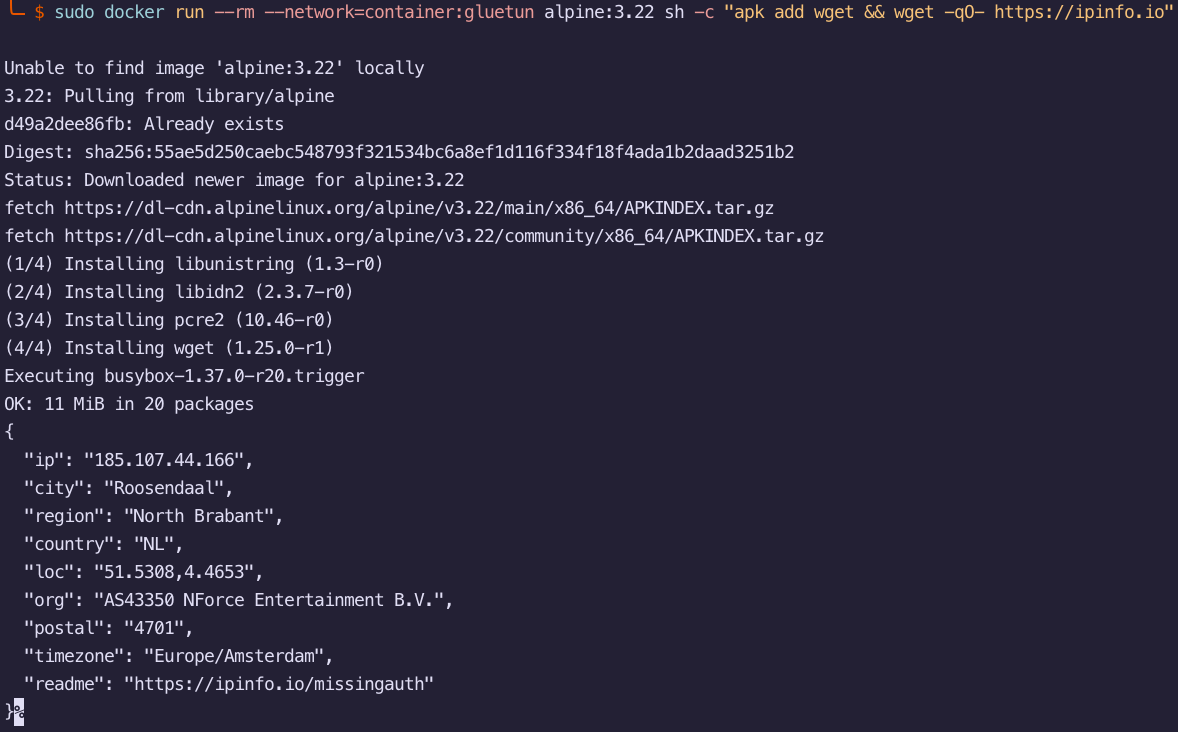
If you want to check if your network traffic is routed via Gluetun you can run this command:
sudo docker run --rm --network=container:gluetun alpine:3.22 sh -c "apk add wget && wget -qO- https://ipinfo.io"






Member discussion