
Optimising Private Shares with NGINX Proxy Manager & Tailscale

I've been sharing some self-hosted services via Tailscale to my friends and family, and I originally set it up with a basic Tailscale & Nginx Proxy Manager set-up. This can be found in this blogpost here: https://blog.timothyduong.me/self-hosting-publishing-privately-to-friends-family/
For background, I have NGINX Proxy Manager (NPM) and Tailscale as Docker Compose containers on a Virtual Machine that I have in a 'DMZ' VLAN / Network. This said VM is used exclusively as a Reverse Proxy to share with my friends and family where I want to share some services such as 'Jellyfin' & 'Seerr' to allow them to watch & request some video content.
Note: I also have my own internal Reverse Proxy that I use for my own private purposes.
I use Tailscale ACLs to allow Port 80 & 443 TCP access to tagged machines and share the machine accordingly. There's currently no limit to shared machines for Tailscale free plan (only if you share your tailnet) so I think this is a relatively scalable exercise cost-wise.
After performing this exercise for over a year now, I found a few things I want to improve based on the feedback & maintaining it for a year:
- Traceability: Identifying IP addresses accessing my Tailnet to ensure I'm serving content that's fit-for-purpose for the location of the user
- Latency & Buffering Spikes: Addressing access buffering issues from Users across the world (Source: Germany, Destination: Australia)
- Slimming down Containers: Ensuring I can back-up, restore/re-host the set-up with minimal down-time
Part 1 - Traceability with Tailscale & Nginx Proxy Manager
This part addresses two things, 'Slimming' & 'Traceability', I originally had two separate containers and docker compose.yaml files, now I've slimmed that to a singular Compose.yaml and also ensured I've added the following additional env_var arguments into the Tailscale container to ensure that Tailscale forwards the Source Client User's Tailscale IP Address to NPM, rather than an internal Docker Network IP (Note, we cannot get their actual IP, only their Tailscale network IP)
The following argument to address this client IP address is: TS_USERSPACE=false
TS_USERSPACE
Controls whether to use userspace networking instead of kernel networking. This is Enabled by default. By setting it to false we're leveraging Userspace networking (e.g. the host's network, instead of Docker Kernels' networking) and the IP addresses will be passed on instead of being marked as '127.0.0.1' or '172.X.X.X' addresses which is localhost or the default Docker networks.
The updated Docker Compose.yaml is seen below, update the /path/to/folders for your respective NGINX & Tailscale directories to ensure you can just .zip those folders to back-up and restore to another host. Additionally, you'll need to fill the .env for TS_AUTHKEY accordingly.
services:
  nginx:
    image: 'docker.io/jc21/nginx-proxy-manager:latest'
    restart: unless-stopped
    ports:
      - '80:80'
      - '81:81'
      - '443:443'
    volumes:
      - ~/nginx/data:/data
      - ~/nginx/letsencrypt:/etc/letsencrypt

  tailscale:
    image: tailscale/tailscale
    cap_add:
      - NET_ADMIN
      - NET_RAW
    environment:
      - TS_AUTHKEY=${TS_AUTHKEY}
      - TS_SOCKET=/var/run/tailscale/tailscaled.sock
      - TS_STATE_DIR=/var/lib/tailscale
      - TS_USERSPACE=false
    volumes:
      - ~/tailscale/data:/var/lib
      - /dev/net/tun:/dev/net/tun
    network_mode: service:nginx
    depends_on:
      - nginx
    restart: unless-stopped
After saving the .yaml, I bring down the existing Containers with a docker compose down in the respective NPM & Tailscale apps and spin this one up with a docker compose up -d then check NPM and Tailscale are active again.
Awesome, we now have a slimmer docker compose that works together, is easy to backup & restore (e.g. zip npm.zip /path/to/npm-ts/) and finally addressing source client Tailscale IP.
Note: If you use Caddy, Pangolin, Traefik, the principals are the same, just add that env_var to the respective tailscale compose.yaml
Part 2 - Updating Jellyfin with NPM Settings & Jellyfin Networking
This section only applies to Jellyfin but the principles still apply to other applications, these include:
- Ensure Proto-headers are forwarded at your Reverse Proxy
- CORS is correctly configured on the application
- Defining the different networks / traffic
The aim of this section is to ensure we're optimising Jellyfin to serve Direct Play content for Local users and adjust transcoding settings for remote users (Tailscale), this is important as I scale-up my private shared services to ensure streams are transcoded rather than direct play so my uplink is not saturated.
NPM - Proxy Host SSL Settings
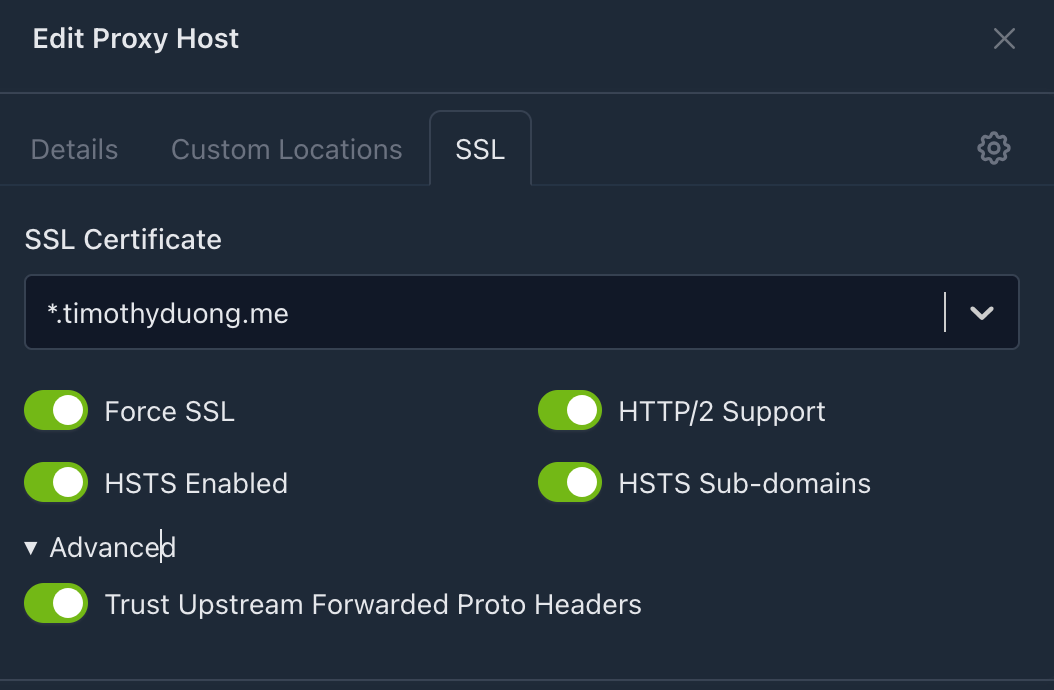
On Nginx Proxy Manager, for the app 'Jellyfin' or Proxy Host, select the SSL tab in NPM and ensure all options are enabled, especially under 'Advanced' there's Trust Upstream Forwarded Proto Headers , once that is set, select the COG / Settings and add the following proxy configuration to ensure it is configured.
    location / {
        # Proxy main Jellyfin traffic
        proxy_pass http://{JELLYFIN-IP}:8096;
        proxy_set_header Host $host;
        proxy_set_header X-Real-IP $remote_addr;
        proxy_set_header X-Forwarded-For $proxy_add_x_forwarded_for;
        proxy_set_header X-Forwarded-Proto $scheme;
        proxy_set_header X-Forwarded-Protocol $scheme;
        proxy_set_header X-Forwarded-Host $http_host;

        # Disable buffering when the nginx proxy gets very resource heavy upon #treaming
        proxy_buffering off;
    }

location /embywebsocket {
        # Proxy Jellyfin Websockets traffic
        proxy_pass http://{JELLYFIN-IP}:8096;
        proxy_http_version 1.1;
        proxy_set_header Upgrade $http_upgrade;
        proxy_set_header Connection "upgrade";
        proxy_set_header Host $host;
        proxy_set_header X-Real-IP $remote_addr;
        proxy_set_header X-Forwarded-For $proxy_add_x_forwarded_for;
        proxy_set_header X-Forwarded-Proto $scheme;
        proxy_set_header X-Forwarded-Protocol $scheme;
       proxy_set_header X-Forwarded-Host $http_host;
   }
Update {JELLYFIN-IP} with your Jellyfin's Server IP Address
Jellyfin Networking
This is where the 'defining different networks' part ties directly into the buffering problem from the intro. Head to Jellyfin's Dashboard → Networking and set the following:
- Known proxies: add the IP address your reverse proxy actually connects to Jellyfin from (in my case, that's the DMZ VM's LAN IP). This is required for Jellyfin to trust the
X-Forwarded-Forheader coming from NPM and actually resolve the real client Tailscale IP, rather than logging every session as coming from your reverse proxy (or the internal docker network). Requires a reboot of Jellyfin to take effect. - LAN networks: this setting quietly does a lot of work. Define your actual local subnet here (e.g.
10.0.1.0/24), anything outside that range, including every Tailscale IP (which live in the100.64.0.0/10CGNAT range), gets classified by Jellyfin as 'remote'. This one field is what lets me tell Jellyfin "local = trusted, full quality" vs "remote = be careful with my uplink" without touching a single client setting. - Published Server URIs: set to
all=https://yourdomainso Jellyfin always advertises the correct external address regardless of which interface a client connects through, this avoids clients or apps trying to resolve a local-only address that means nothing outside your LAN. Note: I'm using Split-brain DNS to server internal IPs and External IPs (Tailscale IP) depending on network.
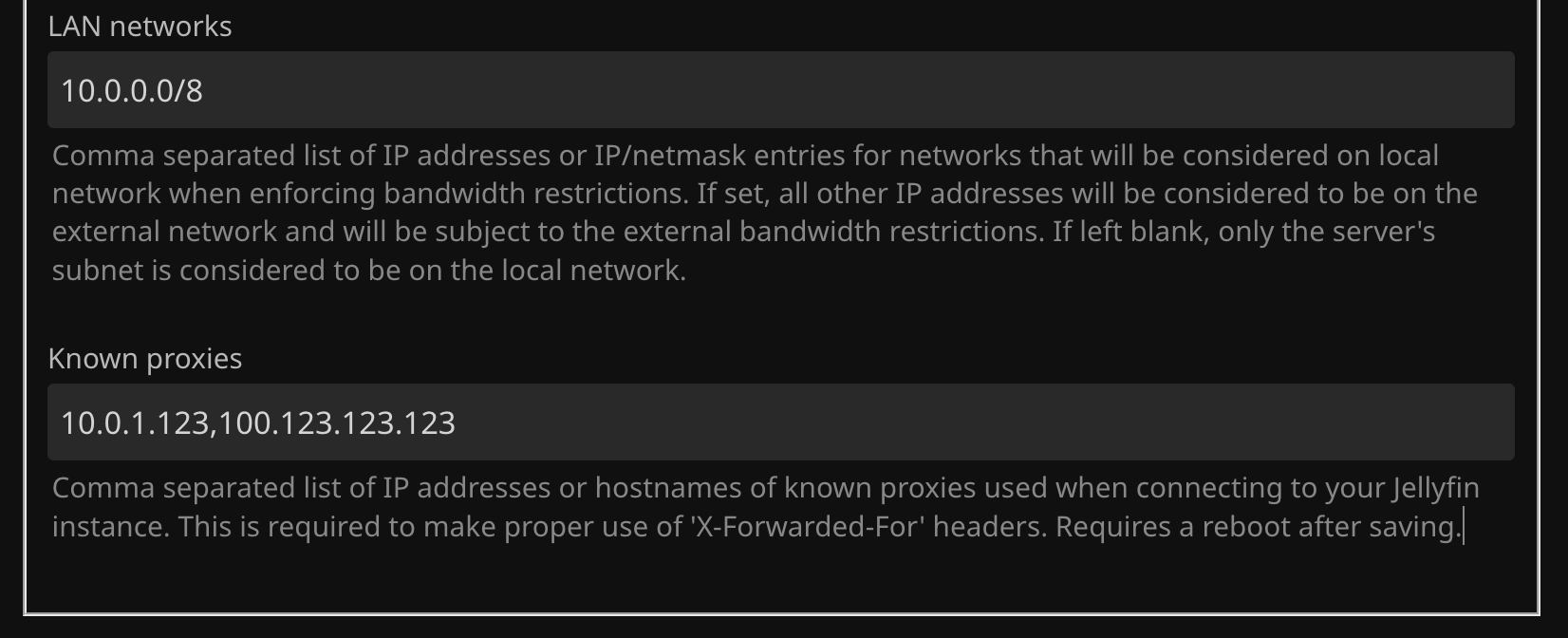
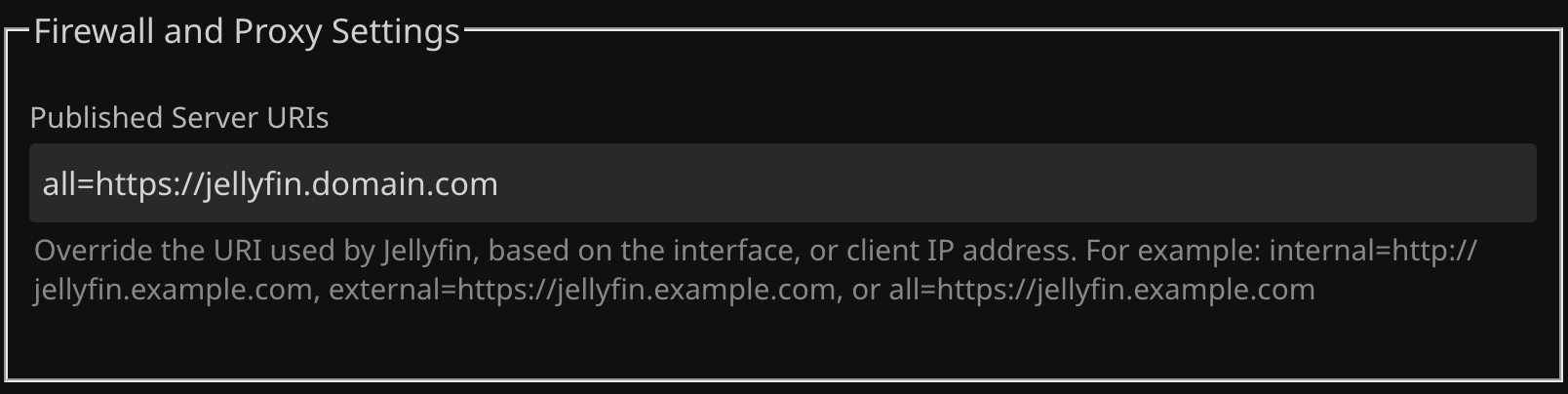
Once 'Known proxies' is set correctly, you'll notice something satisfying almost immediately in Dashboard → Activity: sessions start showing real Tailscale IPs (100.x.x.x) instead of your reverse proxy's own address. That's the traceability goal from the intro, actually delivered.
Jellyfin Streaming settings
With 'LAN networks' correctly scoping what counts as local vs remote, the other half of this is telling Jellyfin what to actually do differently for each. Head to Dashboard → Playback and set an Internet streaming bitrate limit — this cap only applies to clients Jellyfin has classified as remote (i.e. anyone outside the LAN networks range you just defined), so local devices on my own network still get full-quality Direct Play with zero unnecessary transcoding overhead, while anyone connecting in over Tailscale automatically gets capped down to something my home uplink can actually sustain.
This is the whole point of the exercise for me: I don't want a family member overseas accidentally pulling an 80Mbps 4K remux and hammering my upload the second they hit play. Capping the remote bitrate keeps it watchable for them and keeps my connection usable for everyone else on it at the same time.
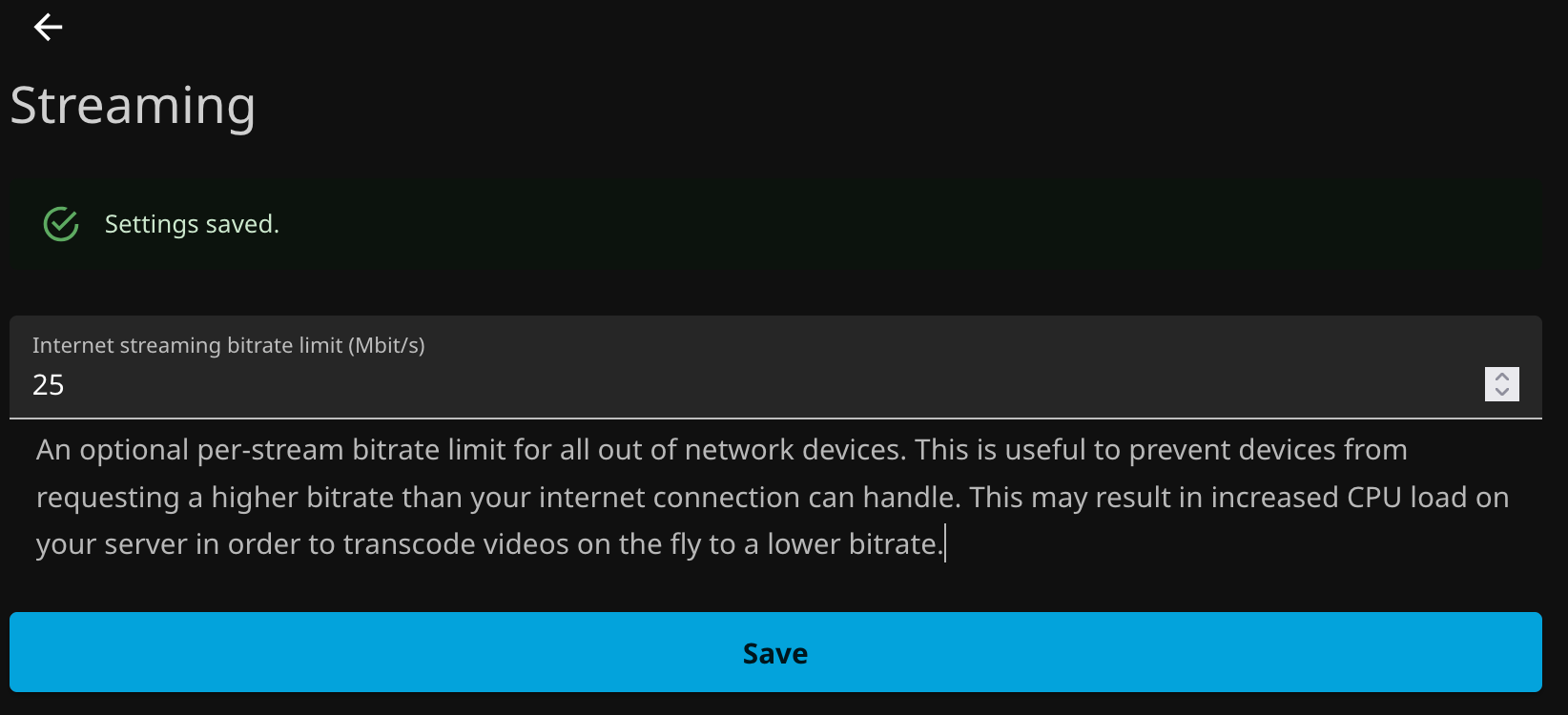
Note: the exact bitrate limit you set is a "know your own uplink" exercise, check your actual upload speed and leave meaningful headroom if you've got more than one remote viewer at a time.
Part 3 - Enable TCP BBR on Reverse Proxy Host
This part goes back to the second problem from the intro: buffering for anyone geographically far from the server. My go-to test case has been a mate in Germany hitting a server sitting in Australia, about as far apart as two people can reasonably be on this planet and still share a Jellyfin library.
The round-trip time between Germany and Australia sits somewhere around 250ms, and that number matters more than it sounds like it should. Linux's default TCP congestion control (Cubic) and default socket buffer sizes were never tuned with a 250ms RTT in mind, the amount of data a connection can have "in flight" at once is capped by buffer size ÷ RTT, so even with plenty of bandwidth available on both ends, the connection physically can't fill the pipe over a link that long unless the buffers are actually sized for it. That mismatch is what shows up as random stutters and stalls, independent of anything Jellyfin, Docker, or NPM are doing.
The fix is two-fold: switch congestion control from Cubic to BBR (a model-based algorithm that estimates actual available bandwidth and RTT rather than just reacting to packet loss, which handles long, occasionally-lossy paths far better), and size the buffers to actually match a high-latency connection.
sudo tee /etc/sysctl.d/99-bbr.conf <<EOF
# BBR congestion control
net.core.default_qdisc=fq
net.ipv4.tcp_congestion_control=bbr

# High-BDP buffer tuning for ~250ms RTT paths
net.core.rmem_max=134217728
net.core.wmem_max=134217728
net.ipv4.tcp_rmem=4096 87380 134217728
net.ipv4.tcp_wmem=4096 65536 134217728
net.ipv4.tcp_window_scaling=1
net.ipv4.tcp_slow_start_after_idle=0
EOF
sudo sysctl --system
A couple of things worth calling out on this one:
- This goes on the reverse proxy VM, not the Jellyfin host. The long-haul, high-latency leg of the connection is between the remote client and your reverse proxy, the hop from your reverse proxy to Jellyfin is a local, low-latency one, so tuning it there does nothing for this specific problem.
tcp_slow_start_after_idle=0is a small one but worth having for streaming specifically, by default, Linux resets the congestion window after a connection sits idle, so pausing or seeking mid-stream forces a slow ramp-up all over again on resume, which shows up as a stutter right when someone unpauses.- Confirm it actually took after reboot/reapply with
sysctl net.ipv4.tcp_congestion_controlit should returnbbr.
Note: if your reverse proxy sits behind Tailscale like mine does, none of this conflicts with anything Tailscale/WireGuard is doing under the hood, Tailscale just encapsulates whatever you send in an encrypted UDP tunnel and has no congestion control logic of its own, so your actual TCP stream's behaviour (and therefore this tuning) still applies end-to-end exactly as if the tunnel wasn't there.
With all three of these in place: traceability from Part 1, sensible local vs remote handling in Part 2, and proper long-haul TCP tuning here.
The whole set-up finally behaves the way I wanted it to a year ago: friends and family overseas get a smooth stream capped to something my connection can handle, I can actually see who's connecting and from where, and the whole thing backs up to two zipped folders if I ever need to move it to new hardware/hosts without needing to re-invite people to my new 'machine' or 'host'











Member discussion