Inbox Zero: A Framework & Habit


Inbox Zero
Let's talk about inbox zero. Not as a productivity flex, but as a practical way to think about how information flows into your life.
First, a quick framing
Email isn't the only thing that competes for your attention. We've got a bunch of tools for a reason:
- Email - like snail mail. It's how external people and organisations reach you, amongst many other things
- Scheduling - planning and scheduling, usually via a Calendar app. Also usually linked to your email address
- To Do - like a post-it note or grocery list. It's for things you need to remember or do (ala GTD). Could be a Reminders app or a Kanban board like Trello
- Information Snippets - bookmarked, saved for later. To be reviewed never, or someday
The problem I see is when people try to use one tool for everything. That just creates noise, or shuffles things from one place to another when it isn't necessary (e.g. Mail to Calendar for ad-hoc non-critical items). Keep the distinction where required, and use your judgement.
What actually lands in your inbox?
Most emails fall into one of three buckets:
- Actionable - a bill, a form you need to fill out, something that requires a response
- Informational - an alert, a notification, something you might want to know
- Fluff - noise. Ads, newsletters you forgot you subscribed to, promotional stuff
Once you see your inbox that way, it becomes less overwhelming. It's just a queue of things to classify and act on.
How to actually get to inbox zero
Step 1: Set up your folders (but keep them broad)
Folders and labels are great, but the trap is going too deep. 47 nested folders is not a system - it's a second job.
My recommendation: no more than 20 folders, and keep them as broad as possible. You can always refine later, but starting broad means stuff actually gets filed. And remember, you can always just search, or save a search.
Here's an example of how my inbox is structured:
- Receipts - invoices, with a subfolder: Updates
- Family - everything to do with my family, subfolders: Wife, Children, Pet
- Personal - personal admin for me specifically, subfolders: Government, Health, Transportation, Travel
- Projects - things I'm interested in, subfolders: Hobbies
- Finance - anything money-related, subfolders: Banking, Credit, Investments, Property
- Work & Business - subfolders: Career, Side Projects, 'Side hustles'
Some general retention guidelines:
- Government / banking: keep for 10+ years
- Invoices and receipts: keep for tax, warranty, and business purposes
- Order updates and shipping notifications: auto-delete after 90 days
Step 2: Unsubscribe from everything that doesn't matter
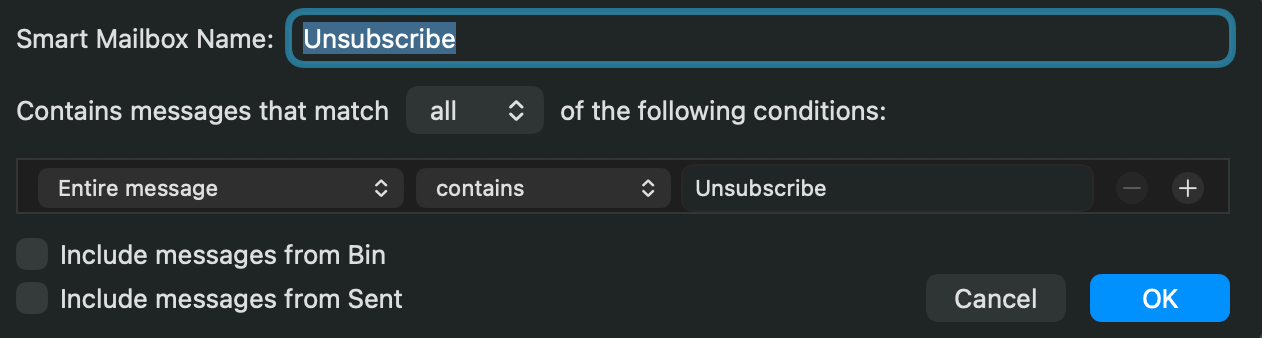
This is the biggest lever. Search "unsubscribe" in your inbox right now. Go through the results and unsubscribe from anything you don't actively care about - newsletters, promotional emails, notifications from services you barely use. All of it.
If you're genuinely interested in a particular newsletter or brand, go visit their site directly. Your inbox shouldn't be where ads live. If you're really into newsletters, create a rule to forward them to a Newsletters subfolder and read it when you're ready for it.
Step 3: Create rules for the noise you want to keep temporarily
Some emails matter, just not for very long. Order confirmations and shipping updates are a good example - you care about them until the package arrives, and then they're useless.
The move here: create a rule that automatically routes those emails into a dedicated folder, then set that folder to auto-purge after 30, 60, or 90 days. Most email clients support this. Fastmail, which I use, handles it well. If something's flagged in that folder, you can set it to skip the auto-delete.
If you want to track deliveries in one place, I'd recommend Parcel.app. Grab the tracking code, add it there, and let the email sit quietly in your Updates folder until it gets purged.
Step 4: Deal with the backlog without burning out
If you've got thousands of unread emails, don't try to go through all of them at once. Anything older than 12 months and still unread? Archive it now. You didn't read it yesterday, you're not going to read it tomorrow.
Search for anything specific if you need it later. Focus on the last 6–12 months, classify and act on what's relevant, and chip away at the older stuff when you have time.
You can get to inbox zero today - just archive the backlog and start clean.
Step 5: Build a habit - the daily 1-click triage
The system only works if you actually use it. The good news is that once the setup is done, the daily maintenance is light - maybe 5–10 emails a day. Review, tick and flick, flag for later, whatever works for you.
My workflow leans on Apple Mail's 'Move to Folder' feature on macOS and iOS. Over time it learns where you send things, so filing an email becomes one click on Mac and two taps on iPhone. Fast enough that it doesn't feel like a chore.
If something needs to be addressed later, you can mark for follow-up with the flag tool. Just make sure you don't flag too many things, otherwise, once again, it is just noise, or you're not action-ing the flagged things.
If you're not on Apple devices, plenty of other mail clients have similar smart-move features - the specific tool matters less than building the habit of a quick daily pass.
Advanced & Alternatives
Smart Mailboxes in macOS Mail.app
Smart Mailboxes are virtual filtered views - not real folders. They don't move your mail, they just surface emails that match a set of criteria. Two I find genuinely useful:
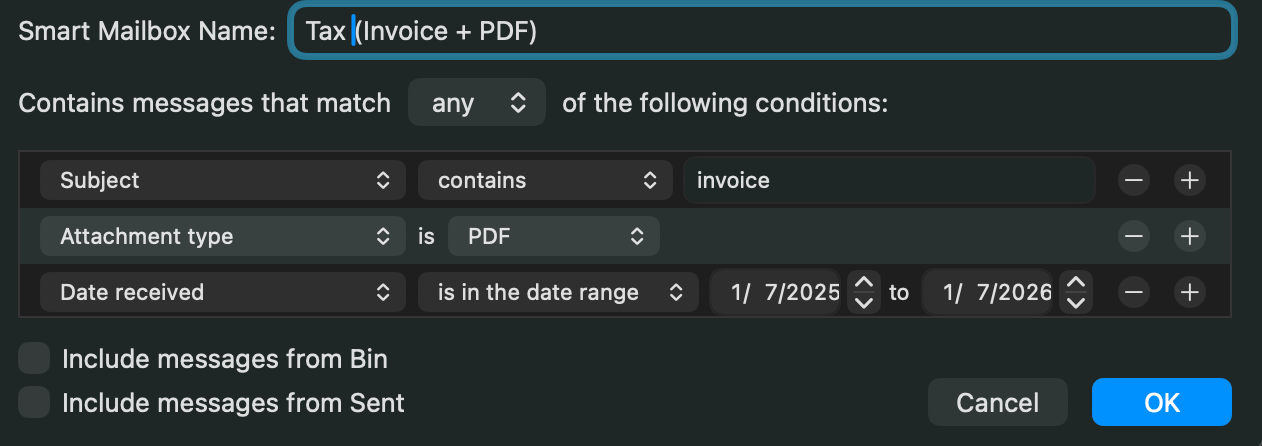
- Tax Time - create a Smart Mailbox that pulls together emails from the ATO, your accountant, any payroll systems, and your invoice folders, filtered by the current financial year. When tax time comes around, everything is already in one place. No hunting, no forwarding to yourself, no stress.
- Unsubscribe - create a Smart Mailbox that searches your whole inbox for the word "unsubscribe". Use this periodically (every month or so) as a maintenance pass. It surfaces promotional and newsletter emails you may have missed, so you can batch-unsubscribe in one session rather than doing it reactively.
Some rules I use
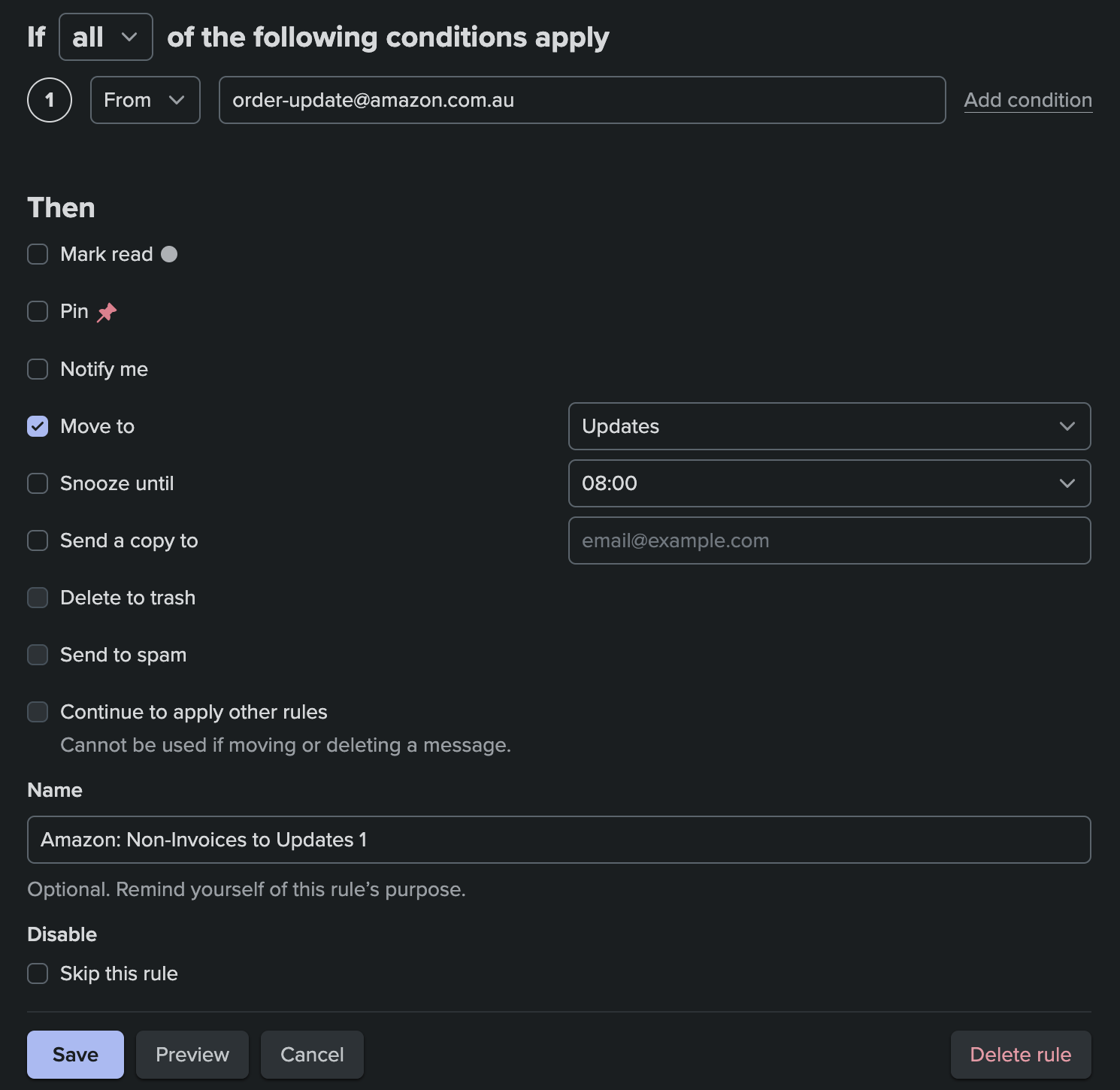
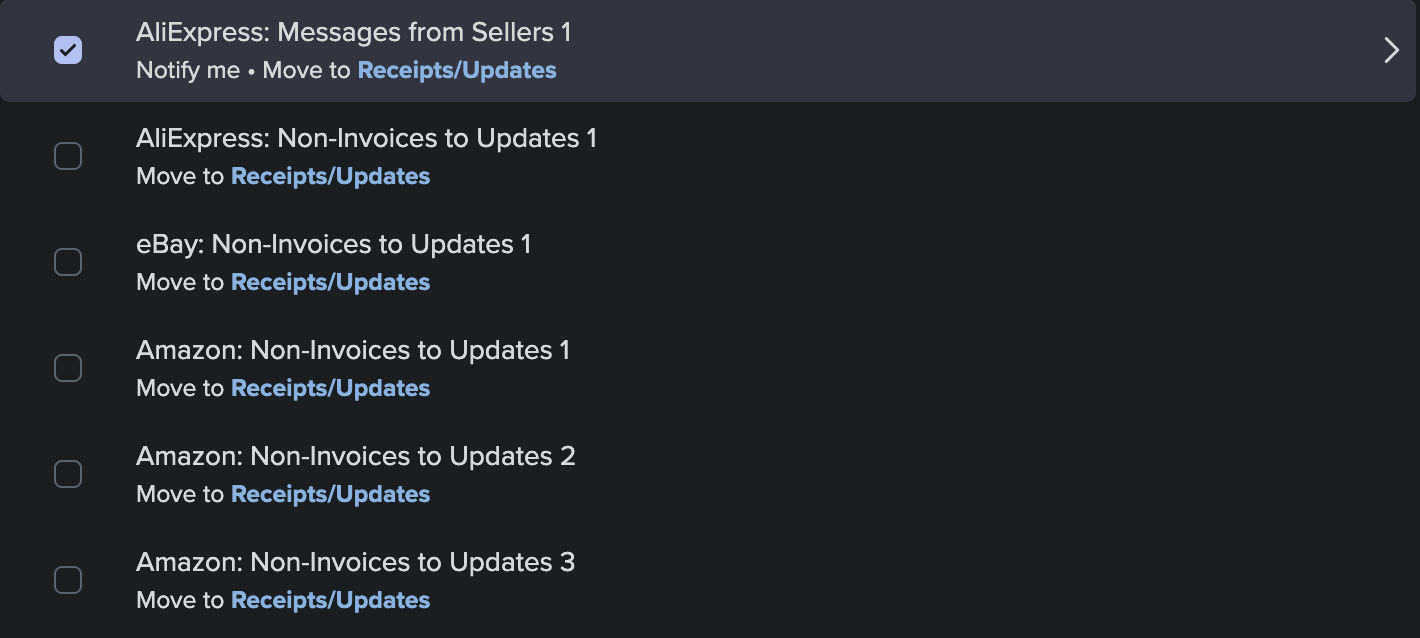
Order Invoices vs. Order Updates - these need to be treated differently. An order invoice or receipt is a document - you may need it for returns, warranty claims, or tax. It should go into your Receipts folder and stay there. An order update or shipping notification is temporary - route it to an Updates subfolder under Receipts, and let it auto-purge after 90 days. Same sender, two different rules, two different fates.
The key is to set these rules up once and not think about them again. Most email clients (Gmail filters, Fastmail rules, Apple Mail rules) let you match on sender, subject keywords, or both.
What about AI?
Short answer: no. You don't need it, and I'd push back on using it here. Your inbox contains some of your most sensitive information - banking, health, government correspondence, personal life. Piping that through a public AI service to "summarise" or "triage" it isn't a trade-off I'd make.
Inbox zero, done properly, doesn't need AI. The system described above is simple enough to run manually with very little effort once it's set up. If you're self-hosting your own models, that's a different conversation - but if you're reading this article, you probably aren't.
In summary: email should not be a source of stress. Treat it as a queue with clear rules for what stays, what gets filed, and what gets deleted - and it gets a lot easier to manage. It won't always be perfect, but having a system beats letting it pile up.
What works for me may not work for you. Take what's useful, adapt what isn't, and leave the rest. Good luck 📭






Member discussion